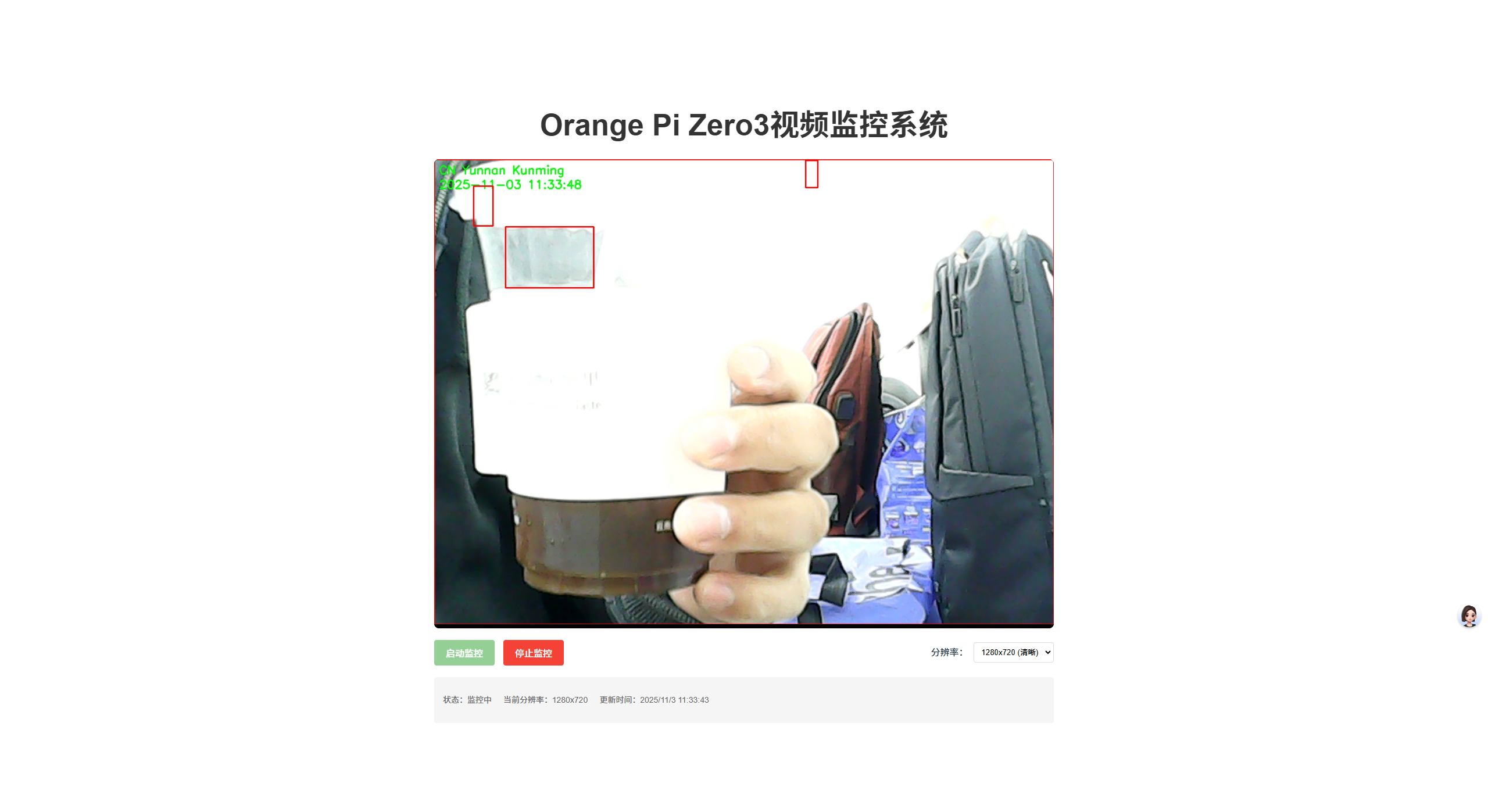
基于Vue+Python+Orange Pi Zero3的完整视频监控方案
以下是基于Vue+Python+Orange Pi Zero3的完整视频监控方案,包含两端完整代码和详细注释,确保各环节清晰可懂。
一、整体方案架构
Orange Pi Zero3 (服务端)          Vue前端 (客户端)
┌───────────────────────┐       ┌───────────────────┐
│ 1. Python视频流服务    │       │ 1. 视频播放组件    │
│    - 读取摄像头        │◄─────►│ 2. 控制按钮        │
│    - 提供MJPEG流      │       │ 3. 状态显示        │
│    - 处理视频帧        │       │                   │
└───────────────────────┘       └───────────────────┘
二、Orange Pi端(Python服务端)
1. 环境准备
# 安装依赖
sudo apt update && sudo apt upgrade -y
sudo apt install python3 python3-pip -y
# 安装Python库(opencv用于摄像头操作,flask提供web服务)
pip3 install opencv-python flask flask-cors numpy
安装过程中会报错,需要创建并激活一个独立的虚拟环境,在其中安装包(不会影响系统 Python):
# 创建虚拟环境(路径可自定义,比如 ~/myenv)
python3 -m venv ~/myenv# 激活虚拟环境
source ~/myenv/bin/activate  # Linux/Mac 系统
# 激活后命令行前会显示 (myenv) 表示成功# 此时可正常使用 pip 安装包
pip install 你需要的包名# 退出虚拟环境(可选)
deactivate
由于镜像问题下载的时候可能会因为超时报错,所以我选择切换仓库镜像提高下载的速率:
pip install opencv-python -i https://mirrors.aliyun.com/pypi/simple/
pip install flask -i https://mirrors.aliyun.com/pypi/simple/
pip install  flask-cors -i https://mirrors.aliyun.com/pypi/simple/
pip install numpy -i https://mirrors.aliyun.com/pypi/simple/
pip install requests -i https://mirrors.aliyun.com/pypi/simple/
2. 完整Python服务代码(video_server.py)
# -*- coding: utf-8 -*-
import cv2  # 摄像头操作库
import numpy as np  # 图像处理
from flask import Flask, Response, jsonify  # Web服务
from flask_cors import CORS  # 解决跨域问题
import threading  # 多线程处理(避免阻塞)
import time  # 时间相关
import requests  # 发送HTTP请求# 初始化Flask应用
app = Flask(__name__)
# 允许跨域访问(前端Vue和后端Python可能不同端口)
CORS(app, resources=r"/*")# -------------------------- 配置参数 --------------------------
# CAMERA_INDEX = 0  # 摄像头设备索引(通常为0)
DEFAULT_WIDTH = 640  # 默认宽度
DEFAULT_HEIGHT = 480  # 默认高度
DEFAULT_FPS = 15  # 默认帧率
SERVER_PORT = 5000  # 服务端口
# --------------------------------------------------------------# 全局变量(多线程共享)
frame = None  # 当前视频帧
is_running = False  # 摄像头运行状态
lock = threading.Lock()  # 线程锁(防止资源竞争)
current_width = DEFAULT_WIDTH
current_height = DEFAULT_HEIGHT
current_fps = DEFAULT_FPSdef capture_frames():"""从摄像头捕获视频帧并进行处理运行在独立线程中,避免阻塞Web服务"""global frame, is_running, current_width, current_height, current_fpsCAMERA_INDEX = 0  # 摄像头设备索引(通常为0)# 测试0-10之间的索引(通常足够覆盖大多数情况)for index in range(10):cap = cv2.VideoCapture(index, cv2.CAP_V4L2)if cap.isOpened():print(f"找到可用摄像头,索引:{index}")cap.release()  # 释放资源CAMERA_INDEX = indexbreakelif index == 9:print(f"无可用摄像头")# 打开摄像头cap = cv2.VideoCapture(CAMERA_INDEX, cv2.CAP_V4L2)if not cap.isOpened():print(f"❌ 无法打开摄像头,请检查设备是否连接(video index: {CAMERA_INDEX})")is_running = Falsereturn# 设置摄像头参数cap.set(cv2.CAP_PROP_FRAME_WIDTH, current_width)cap.set(cv2.CAP_PROP_FRAME_HEIGHT, current_height)cap.set(cv2.CAP_PROP_FPS, current_fps)print(f"✅ 摄像头启动成功 (分辨率: {current_width}x{current_height}, 帧率: {current_fps})")is_running = True# 用于运动检测的背景帧background_frame = None# 获取初始帧以添加IP信息水印ip_info = get_ip_info()  # 获取公网IP信息while is_running:# 读取一帧画面ret, img = cap.read()if not ret:print("⚠️ 无法获取视频帧,尝试重连...")time.sleep(1)continue# ---------------------- 视频处理示例 ----------------------# 1. 添加IP水印cv2.putText(img,ip_info,(10, 30),  # 位置cv2.FONT_HERSHEY_SIMPLEX,  # 字体0.8,  # 大小(0, 255, 0),  # 颜色(绿)2  # 线条粗细)# 2. 添加时间水印current_time = time.strftime("%Y-%m-%d %H:%M:%S", time.localtime())cv2.putText(img,current_time,(10, 30+30),  # 位置cv2.FONT_HERSHEY_SIMPLEX,  # 字体0.8,  # 大小(0, 255, 0),  # 颜色(绿)2  # 线条粗细)# 2. 简单运动检测(可选)gray = cv2.cvtColor(img, cv2.COLOR_BGR2GRAY)  # 转为灰度图gray = cv2.GaussianBlur(gray, (21, 21), 0)  # 模糊处理降噪# 初始化背景帧if background_frame is None:background_frame = graycontinue# 计算当前帧与背景帧的差异frame_delta = cv2.absdiff(background_frame, gray)thresh = cv2.threshold(frame_delta, 25, 255, cv2.THRESH_BINARY)[1]thresh = cv2.dilate(thresh, None, iterations=2)  # 膨胀处理# 检测运动区域contours, _ = cv2.findContours(thresh.copy(), cv2.RETR_EXTERNAL, cv2.CHAIN_APPROX_SIMPLE)for c in contours:if cv2.contourArea(c) < 500:  # 忽略小面积变动(避免误判)continue(x, y, w, h) = cv2.boundingRect(c)cv2.rectangle(img, (x, y), (x + w, y + h), (0, 0, 255), 2)  # 画红色矩形# ---------------------------------------------------------# 线程安全地更新当前帧with lock:frame = img.copy()# 控制帧率(避免CPU占用过高)time.sleep(1.0 / current_fps)# 释放资源cap.release()print("🔌 摄像头已关闭")def generate_stream():"""生成MJPEG视频流前端通过HTTP请求获取该流并实时播放"""global framewhile True:with lock:# 检查是否有可用帧if frame is None:time.sleep(0.1)continue# 将OpenCV的BGR格式转为JPEG格式ret, buffer = cv2.imencode('.jpg', frame)if not ret:continueframe_bytes = buffer.tobytes()  # 转为字节流# 按照MJPEG格式协议返回(多部分替换格式)yield (b'--frame\r\n'b'Content-Type: image/jpeg\r\n\r\n' + frame_bytes + b'\r\n')# 获取公网IP信息
def get_ip_info():try:# 访问 ipinfo.io,默认返回本机公网 IP 信息response = requests.get("https://ipinfo.io/json")response.raise_for_status()  # 检查请求是否成功data = response.json()# 提取关键信息# info = {#     "IP 地址": data.get("ip"),#     "国家": data.get("country"),#     "地区": data.get("region"),#     "城市": data.get("city"),#     "经纬度": data.get("loc"),  # 格式:纬度,经度#     "运营商": data.get("org"),#     "时区": data.get("timezone")# }# for key, value in info.items():#     print(f"{key}: {value}")return f'{data.get("country")} {data.get("region")} {data.get("city")}'except requests.exceptions.RequestException as e:print(f"查询失败:{e}")return None# -------------------------- API接口 --------------------------
@app.route('/video_feed')
def video_feed():"""视频流接口:供前端播放"""return Response(generate_stream(),mimetype='multipart/x-mixed-replace; boundary=frame')@app.route('/api/start', methods=['GET'])
def start_stream():"""启动摄像头接口"""global is_runningif not is_running:# 启动独立线程运行摄像头捕获函数threading.Thread(target=capture_frames, daemon=True).start()return jsonify({"status": "success", "message": "摄像头启动中..."})return jsonify({"status": "warning", "message": "摄像头已在运行"})@app.route('/api/stop', methods=['GET'])
def stop_stream():"""停止摄像头接口"""global is_running, frameif is_running:is_running = Falseframe = None  # 清空帧缓存return jsonify({"status": "success", "message": "摄像头已停止"})return jsonify({"status": "warning", "message": "摄像头未运行"})@app.route('/api/status', methods=['GET'])
def get_status():"""获取当前状态接口"""return jsonify({"is_running": is_running,"resolution": f"{current_width}x{current_height}","fps": current_fps})@app.route('/api/set_resolution/<int:w>/<int:h>', methods=['GET'])
def set_resolution(w, h):"""设置分辨率接口(需要重启摄像头生效)"""global current_width, current_height# 简单验证分辨率是否合理if 320 <= w <= 1920 and 240 <= h <= 1080:current_width = wcurrent_height = hreturn jsonify({"status": "success", "message": f"分辨率已设置为 {w}x{h},请重启摄像头"})return jsonify({"status": "error", "message": "分辨率范围无效(320-1920 x 240-1080)"})# --------------------------------------------------------------if __name__ == '__main__':print(f"🚀 视频监控服务启动中... 端口: {SERVER_PORT}")# 启动Web服务(host=0.0.0.0允许局域网访问)app.run(host='0.0.0.0', port=SERVER_PORT, debug=False)
3. 启动Python服务
# 直接运行(测试用)
python3 video_server.py# 后台运行(生产用)
nohup python3 video_server.py > /var/log/orangepi_camera.log 2>&1 &
4. 设置开机自启(可选)
创建系统服务文件:
sudo nano /etc/systemd/system/orangepi-camera.service
内容如下:
[Unit]
Description=Orange Pi Camera Service
After=network.target[Service]
User=orangepi
Group=orangepi
# 直接使用虚拟环境的python路径,替代系统python
ExecStart=/home/orangepi/python3/CAMERA/camera_video_server/myenv/bin/python /home/orangepi/python3/CAMERA/camera_video_server/video_server.py
WorkingDirectory=/home/orangepi/python3/CAMERA/camera_video_server
Restart=on-failure[Install]
WantedBy=multi-user.target
启用服务:
sudo systemctl enable orangepi-camera
sudo systemctl start orangepi-camera
三、Vue前端(客户端)
1. 环境准备
# 创建Vue项目(如果没有)
vue create camera-monitor
cd camera-monitor# 安装依赖(axios用于HTTP请求)
npm install axios --save
2. 完整Vue组件(src/components/CameraMonitor.vue)
/**
* CameraMonitor.vue Orange Pi Zero3视频监控系统
* @Author ZhangJun
* @Date  2025/11/2 16:16
**/
<template><div class="camera-monitor"><h1>Orange Pi Zero3视频监控系统</h1><!-- 视频显示区域 --><div class="video-container"><imgref="videoStream"class="video-feed":src="streamUrl"alt="监控画面"v-if="isStreaming"><div class="video-placeholder" v-else><p>{{ placeholderText }}</p></div></div><!-- 控制按钮区域 --><div class="control-panel"><button@click="handleStart":disabled="isStreaming || isLoading"class="btn start-btn"><span v-if="!isLoading">启动监控</span><span v-if="isLoading">启动中...</span></button><button@click="handleStop":disabled="!isStreaming || isLoading"class="btn stop-btn">停止监控</button><div class="resolution-setting"><label>分辨率:</label><select v-model="selectedResolution" @change="handleResolutionChange"><option value="320x240">320x240 (流畅)</option><option value="640x480">640x480 (平衡)</option><option value="1280x720">1280x720 (清晰)</option></select></div></div><!-- 状态信息区域 --><div class="status-bar"><p>状态:{{ statusText }}</p><p>当前分辨率:{{ currentResolution }}</p><p>更新时间:{{ lastUpdateTime }}</p></div></div>
</template><script setup>
import { ref, onMounted, onBeforeUnmount } from 'vue';
import axios from 'axios';// 核心状态
const isStreaming = ref(false);
const isLoading = ref(false);
const streamUrl = ref('');
const videoStream = ref(null);// 配置信息
const orangePiIp = ref('127.0.0.1');
const serverPort = ref(5000);// 显示信息
const statusText = ref('未连接');
const placeholderText = ref('请点击"启动监控"按钮开始');
const currentResolution = ref('640x480');
const selectedResolution = ref('640x480');
const lastUpdateTime = ref('');// 定时器变量
let statusInterval= null;orangePiIp.value=import.meta.env.VITE_SERVICE_IP// 初始化视频流地址
const getStreamUrl = () => {return `http://${orangePiIp.value}:${serverPort.value}/video_feed`;
};/** 检查摄像头当前状态 */
const checkStatus = async () => {try {const res = await axios.get(`http://${orangePiIp.value}:${serverPort.value}/api/status`);isStreaming.value = res.data.is_running;currentResolution.value = res.data.resolution;selectedResolution.value = res.data.resolution;lastUpdateTime.value = new Date().toLocaleString();statusText.value = isStreaming.value ? '监控中' : '已停止';} catch (err) {console.error('获取状态失败:', err);statusText.value = '无法连接到设备';}
};/** 启动监控 */
const handleStart = async () => {isLoading.value = true;statusText.value = '正在启动摄像头...';try {const res = await axios.get(`http://${orangePiIp.value}:${serverPort.value}/api/start`);console.log('启动响应:', res.data);// 延迟刷新状态setTimeout(() => {checkStatus();isLoading.value = false;}, 1000);} catch (err) {console.error('启动失败:', err);statusText.value = '启动失败,请检查设备';isLoading.value = false;}
};/** 停止监控 */
const handleStop = async () => {try {const res = await axios.get(`http://${orangePiIp.value}:${serverPort.value}/api/stop`);console.log('停止响应:', res.data);await checkStatus();} catch (err) {console.error('停止失败:', err);statusText.value = '停止失败';}
};/** 切换分辨率 */
const handleResolutionChange = async () => {if (!selectedResolution.value) return;const [w, h] = selectedResolution.value.split('x').map(Number);try {const res = await axios.get(`http://${orangePiIp.value}:${serverPort.value}/api/set_resolution/${w}/${h}`);alert(res.data.message);// 如果正在运行,重启生效if (isStreaming.value) {await handleStop();setTimeout(() => handleStart(), 1000);}} catch (err) {console.error('设置分辨率失败:', err);alert('设置分辨率失败');}
};// 生命周期钩子
onMounted(() => {streamUrl.value = getStreamUrl();checkStatus();statusInterval = setInterval(() => checkStatus(), 5000);
});onBeforeUnmount(() => {if (statusInterval) {clearInterval(statusInterval);}
});
</script><style scoped>
/* 样式部分保持不变 */
.camera-monitor {max-width: 1200px;margin: 0 auto;padding: 20px;font-family: Arial, sans-serif;
}h1 {color: #333;text-align: center;margin-bottom: 30px;
}.video-container {width: 100%;background: #000;border-radius: 8px;overflow: hidden;min-height: 400px;position: relative;
}.video-feed {width: 100%;height: auto;max-height: 800px;
}.video-placeholder {width: 100%;height: 400px;display: flex;align-items: center;justify-content: center;color: #999;
}.control-panel {margin-top: 20px;display: flex;flex-wrap: wrap;gap: 15px;align-items: center;
}.btn {padding: 10px 20px;border: none;border-radius: 4px;cursor: pointer;font-size: 16px;transition: opacity 0.3s;
}.btn:disabled {opacity: 0.6;cursor: not-allowed;
}.start-btn {background: #4CAF50;color: white;
}.stop-btn {background: #f44336;color: white;
}.resolution-setting {margin-left: auto;display: flex;align-items: center;gap: 10px;
}select {padding: 8px;border-radius: 4px;border: 1px solid #ddd;
}.status-bar {margin-top: 20px;padding: 15px;background: #f5f5f5;border-radius: 4px;color: #666;font-size: 14px;display: flex;flex-wrap: wrap;gap: 20px;
}
</style>
3. 使用组件(src/App.vue)
<template><div id="app"><CameraMonitor /></div>
</template><script>
import CameraMonitor from './components/CameraMonitor.vue';export default {name: 'App',components: {CameraMonitor}
};
</script><style>
#app {font-family: Avenir, Helvetica, Arial, sans-serif;-webkit-font-smoothing: antialiased;-moz-osx-font-smoothing: grayscale;text-align: center;color: #2c3e50;margin-top: 30px;
}
</style>
4. 运行前端
# 开发环境运行
npm run serve# 构建生产版本(可选)
npm run build
四、使用说明
-
配置修改:
- Python端:根据摄像头情况调整
CAMERA_INDEX(通常为0) - Vue端:在
CameraMonitor.vue中修改orangePiIp为你的Orange Pi局域网IP
- Python端:根据摄像头情况调整
-
启动流程:
- 先启动Orange Pi上的Python服务
- 再启动Vue前端,访问前端页面(默认
http://localhost:8080) - 点击"启动监控"按钮开始显示画面
-
功能说明:
- 实时显示摄像头画面,带时间水印
- 支持运动检测(自动框选移动目标)
- 可切换分辨率(需重启生效)
- 显示当前状态和设备信息
五、常见问题解决
-
摄像头无法启动:
- 检查设备是否存在:
ls /dev/video* - 安装摄像头驱动(部分USB摄像头可能需要)
- 检查设备是否存在:
-
前端无法连接:
- 确认Orange Pi和前端设备在同一局域网
- 检查防火墙:
sudo ufw allow 5000 - 替换正确的IP地址
-
画面卡顿:
- 降低分辨率或帧率
- 检查网络稳定性(建议使用有线连接)
通过以上方案,你可以实现一个功能完整、可交互的视频监控系统,且代码结构清晰,便于后续扩展功能(如录像、截图、远程控制等)。