
Flutter---卡片交换器
效果图
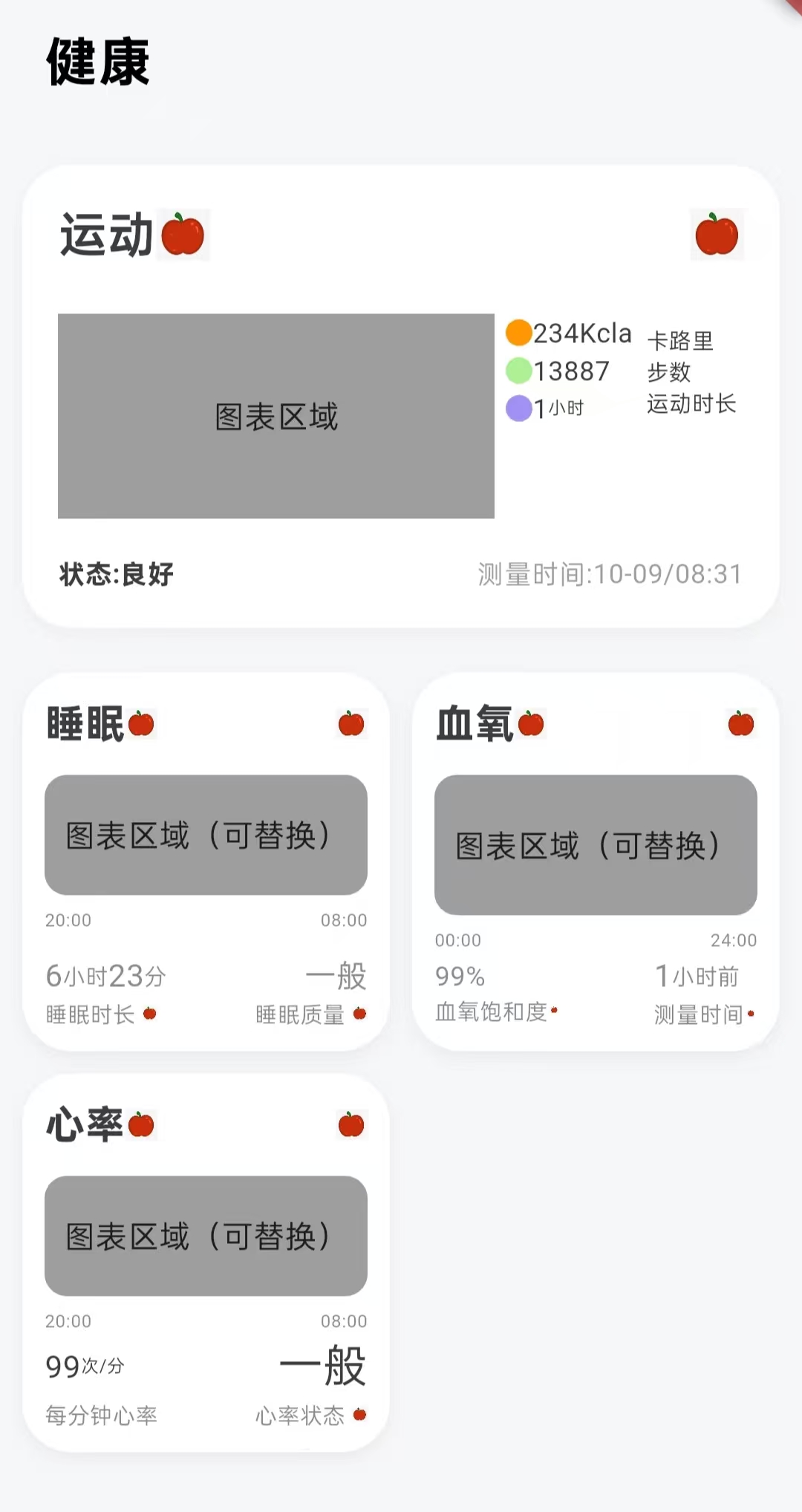
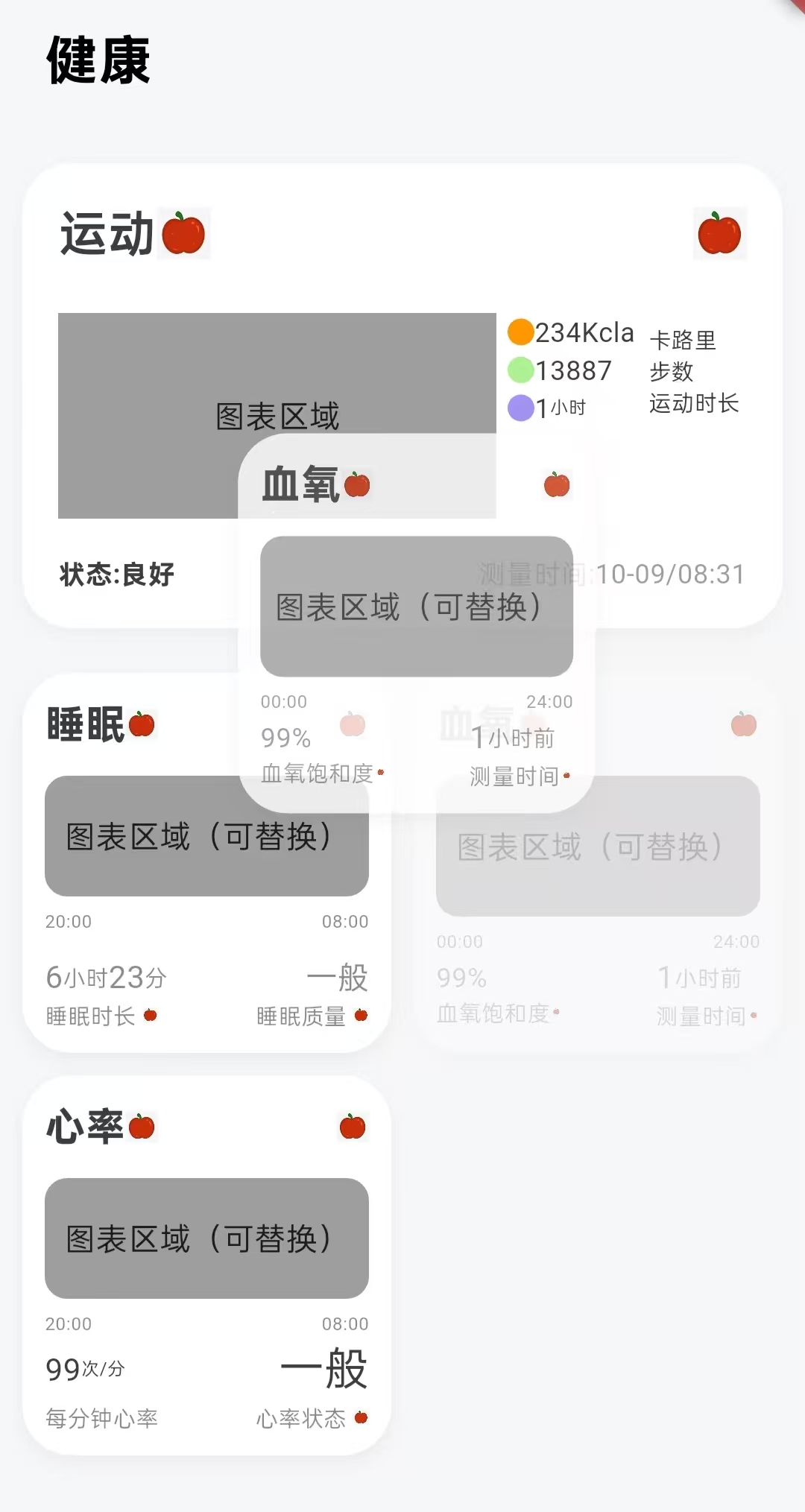
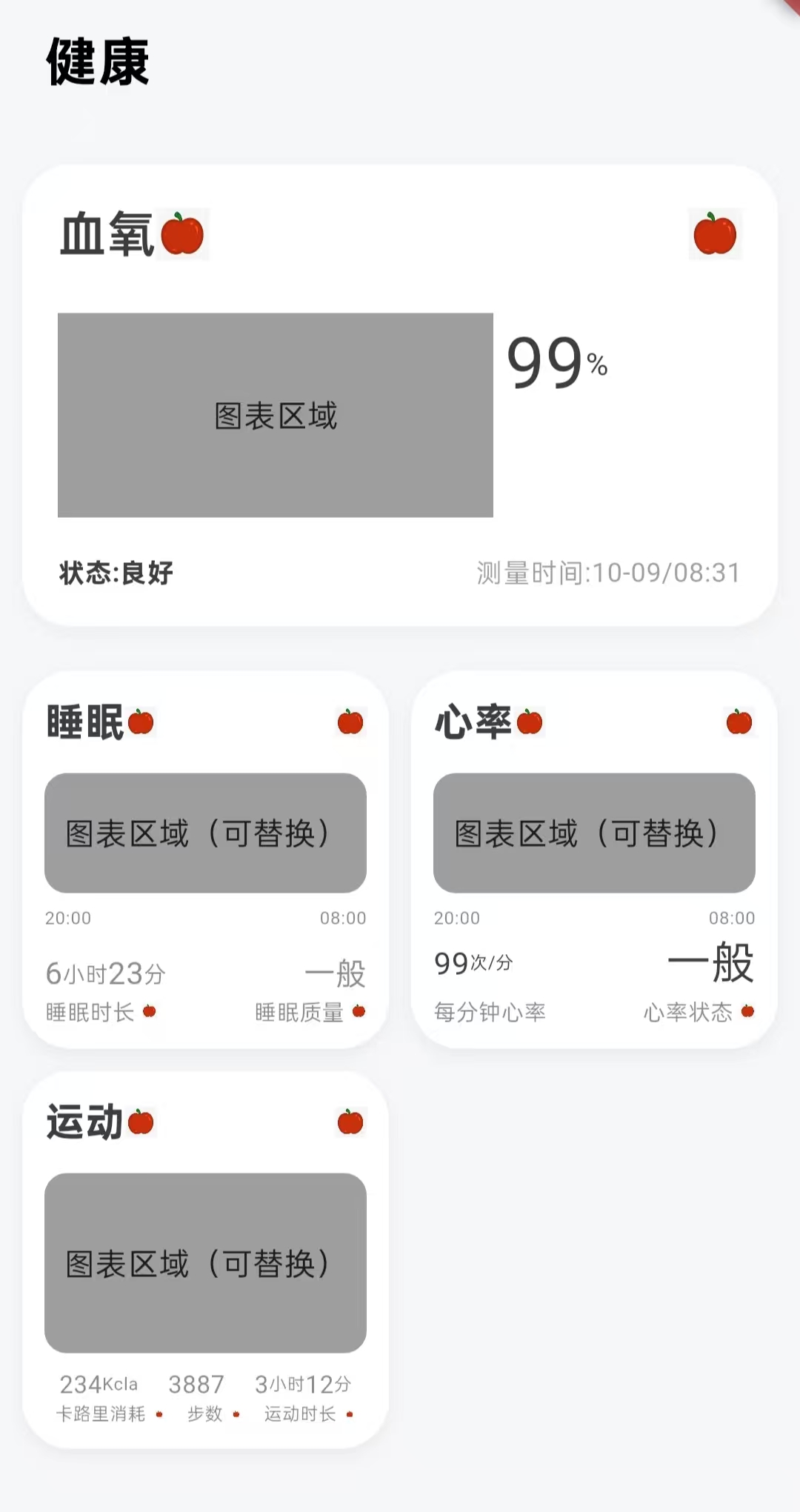
设计思路:两个区域
大卡片区域(顶部):重点展示你最关心的健康数据
小卡片区域(底部):紧凑显示其他健康指标
找出所有大卡片的相同点,提炼出大卡片的框架
找出所有小卡片的相同点,提炼出小卡片的框架
根据卡片不同内容的区域,根据类型来显示那些不同的内容
功能描述:
长按 底部的小卡片(按住约1秒)
拖动 卡片到顶部大卡片区域
松开手指 完成交换
视觉效果:
你拖拽的卡片会升格为大卡片显示
原大卡片会降级到小卡片区域
其他卡片位置自动调整
整体架构
HealthPage(主页面)├── DragTarget(大卡片容器)│ └── buildBigCard() -> buildBigHealthCard() + _buildRightContent()│└── Wrap(小卡片容器)└── LongPressDraggable() -> buildSmallCard() + buildSmallHealthCard() + _buildBottomContent()
HealthPage
├── 大卡片区域 (DragTarget) - 接收拖放
├── 小卡片区域 (Wrap + LongPressDraggable) - 提供拖拽
└── 四种卡片类型 (CardType枚举)
拖放交换算法
初始状态:
大卡片: heartRate
小卡片: [sleep, sport, bloodOxygen]用户将 sleep 拖到大卡片:
1. oldBig = heartRate (保存原大卡片)
2. bigCard = sleep (更新大卡片)
3. smallCards.remove(sleep) → [sport, bloodOxygen]
4. smallCards.add(heartRate) → [sport, bloodOxygen, heartRate]最终状态:
大卡片: sleep
小卡片: [sport, bloodOxygen, heartRate]
数据流
eg:用户长按“睡眠”小卡片 → 拖动到大卡片区域 → 松手1.LongPressDraggable 被触发用户长按,小卡片进入“拖拽模式”;Flutter 创建一个overlay层(浮动层);在 overlay 中显示 feedback(即被拖动的卡片预览);当前 widget 的原位置调用 childWhenDragging 显示半透明状态。这里的“被拖拽数据” = data = CardType.sleep,这是拖拽过程中唯一携带的数据。2.拖拽进入 DragTarget 区域(目标区域)Flutter 调用 onWillAccept(data) → 询问是否接受(返回 true 表示可以投放);同时 builder 会被再次触发,参数 candidateData 会包含当前悬停的拖拽对象;因此 UI 重新 build,一旦 candidateData.isNotEmpty == true,我们就能让卡片“高亮”3.用户松手 → 调用 onAccept4.状态更新 → Flutter 重新 Build总结:Draggable 产生数据 → DragTarget 感知数据 → onAccept 改变状态 → setState 触发 UI 重建从哪些方面学习这个项目
1.Widget 结构与渲染逻辑
Widget:描述 UI 外观的不可变配置;Element:Widget 的运行时实例;RenderObject:真正绘制在屏幕上的渲染对象;build():根据状态创建新的 Widget 树。2.交互层:Draggable / DragTarget 数据流机制
LongPressDraggable、Draggable 的生命周期;feedback、childWhenDragging 的区别;DragTarget 的 3 个回调:onWillAccept:悬停;builder:实时 UI 构建;onAccept:释放数据时触发;泛型 <T>:如何在拖拽时安全传递不同数据类型。3.状态管理层:数据结构与状态流
理解 setState() 的作用和 rebuild 范围;学习 List 的常用操作(add、remove、insert、map、where 等);了解 Flutter 的响应式更新模型;当逻辑变复杂时,学习引入状态管理框架:ProviderRiverpodBlocMobX4.理解项目的可扩展性、解耦性和代码组织结构。
View(UI) vs ViewModel(状态);数据流从用户 → 状态 → UI 的单向流;模块化文件结构5.底层理解:Flutter 框架与事件机制
Flutter 的「声明式 UI」思想;手势系统(GestureDetector、HitTest、PointerEvent);Widget → Element → RenderObject 树结构;布局和渲染流程(layout → paint → compositing → rasterization)。实现步骤
1.声明有四种类型的卡片
enum CardType { heartRate, sleep, sport, bloodOxygen }2.设置默认值,add和remove是List自带的 标准方法
CardType bigCard = CardType.heartRate; //默认当前大卡片类型是心率List<CardType> smallCards = [ //默认当前小卡片的类型列表CardType.sleep,CardType.sport,CardType.bloodOxygen,];
3.构建主体UI,先是大卡片的逻辑框架(核心代码)
// ===================== 大卡片(可接收拖放) =====================DragTarget<CardType>(onWillAccept: (data) => true, //总是接收拖放onAccept: (CardType newType) { //拖放后的处理setState(() {final oldBig = bigCard; //保存当前大卡片bigCard = newType; //更新大卡片为新类型smallCards.remove(newType); //从小卡片移除该类型smallCards.add(oldBig); //将原来的大卡片加入小卡片});},builder: (context, candidateData, rejectedData) {return AnimatedContainer( //带动画效果的容器duration: const Duration(milliseconds: 300),curve: Curves.easeOut,//当有拖拽的卡片悬停在这个目标上时,让卡片高亮(或变色)child: buildBigCard(bigCard,highlight: candidateData.isNotEmpty),);},),4.小卡片的逻辑框架(核心代码)
// ===================== 小卡片区域(提供拖拽) =====================Wrap( //流式布局,自定换行spacing: 10, //水平间距runSpacing: 10, //垂直间距children: smallCards.map((type) =>LongPressDraggable<CardType>( //为每个类型创建可拖拽卡片data: type, //拖拽传递的数据onDragStarted: () => HapticFeedback.lightImpact(), //触觉反馈,手机震动feedback: Material( //拖拽时的预览效果color: Colors.transparent,child: SizedBox(width: 160,child: Opacity(opacity: 0.8,child: buildSmallCard(type),),),),childWhenDragging: Opacity( //拖拽时原位置的显示opacity: 0.3,child: buildSmallCard(type),),child: buildSmallCard(type), //正常状态显示),).toList(),),5.定义通用组件大卡片
// ===================== 通用组件:大卡片 =====================Widget buildBigHealthCard({required String title,required String smallIcon,required String forwardIcon,required String leftText,required String rightText,required CardType type, // 传递卡片类型}) {return Container(margin: const EdgeInsets.only(top: 19),padding: const EdgeInsets.all(16),decoration: BoxDecoration(color: Colors.white,borderRadius: BorderRadius.circular(22),boxShadow: [BoxShadow(color: Colors.grey.withOpacity(0.1),blurRadius: 6,offset: const Offset(0, 3),),],),child: Column(crossAxisAlignment: CrossAxisAlignment.start,children: [// 顶部标题行Row(children: [Text(title,style: const TextStyle(fontSize: 22,color: Color(0xFF3D3D3D),fontWeight: FontWeight.w600,),),Image.asset(smallIcon,width: 24,height: 24,),const Spacer(),Image.asset(forwardIcon,width: 24,height: 24,),],),const SizedBox(height: 20),// 内容区域Row(crossAxisAlignment: CrossAxisAlignment.start,children: [// 左侧图表区域Container(height: 92,width: 196,decoration: BoxDecoration(color: Colors.grey,),child: const Center(child: Text("图表区域"),),),const SizedBox(width: 5),// 右侧内容(根据类型显示)Expanded(child: _buildRightContent(type),),],),const SizedBox(height: 16),// 底部左右文字Row(mainAxisAlignment: MainAxisAlignment.spaceBetween,children: [Text(leftText,style: const TextStyle(fontSize: 12,fontWeight: FontWeight.bold,color: Color(0xFF3D3D3D),),),Text(rightText,style: const TextStyle(fontSize: 12,color: Colors.grey,),),],),],),);}6.定义通用组件小卡片
// ===================== 通用组件:小卡片 =====================Widget buildSmallHealthCard({required String title,required String smallIcon,required String nailIcon,required CardType type, //根据类型显示不同内容}) {return Container(width: 165,height: 170,decoration: BoxDecoration(color: Colors.white,borderRadius: BorderRadius.circular(22),boxShadow: [BoxShadow(color: Colors.black.withOpacity(0.05),blurRadius: 6,offset: const Offset(0, 3),),],),padding: const EdgeInsets.all(10),child: Column(crossAxisAlignment: CrossAxisAlignment.start,children: [// 标题行Row(children: [Text(title,style: const TextStyle(fontWeight: FontWeight.bold,fontSize: 18,color: Color(0xFF3D3D3D),),),Image.asset(smallIcon, height: 14),const Spacer(),Image.asset(nailIcon, height: 14),],),const SizedBox(height: 10),// 图表区域Expanded(child: Container(width: 151,height: 62,decoration: BoxDecoration(color: Colors.grey,borderRadius: BorderRadius.circular(10),),child: const Center(child: Text("图表区域(可替换)"),),),),const SizedBox(height: 6),// =============== 根据类型显示不同的底部内容 ===============..._buildBottomContent(type),],),);}
7.构建大卡片:给大卡片模板传入数据
// ===================== 构建不同类型的大卡片(传入大卡片数据) =====================Widget buildBigCard(CardType type, {bool highlight = false}) {switch (type) {case CardType.heartRate:return buildBigHealthCard(title: "心率",smallIcon: "assets/images/apple.png",forwardIcon: "assets/images/apple.png",leftText: "状态:良好",rightText: "测量时间:10-09/08:31",type: CardType.heartRate,);case CardType.sleep:return buildBigHealthCard(title: "睡眠",smallIcon: "assets/images/apple.png",forwardIcon: "assets/images/apple.png",leftText: "状态:良好",rightText: "测量时间:10-09/08:31",type: CardType.sleep,);case CardType.sport:return buildBigHealthCard(title: "运动",smallIcon: "assets/images/apple.png",forwardIcon: "assets/images/apple.png",leftText: "状态:良好",rightText: "测量时间:10-09/08:31",type: CardType.sport,);case CardType.bloodOxygen:return buildBigHealthCard(title: "血氧",smallIcon: "assets/images/apple.png",forwardIcon: "assets/images/apple.png",leftText: "状态:良好",rightText: "测量时间:10-09/08:31",type: CardType.bloodOxygen,);}}8.构建小卡片:给小卡片传入数据
// ===================== 构建不同类型的小卡片(传入小卡片数据) =====================Widget buildSmallCard(CardType type) {switch (type) {case CardType.heartRate:return buildSmallHealthCard(title: "心率",smallIcon: "assets/images/apple.png",nailIcon: "assets/images/apple.png",type:CardType.heartRate);case CardType.sleep:return buildSmallHealthCard(title: "睡眠",smallIcon: "assets/images/apple.png",nailIcon: "assets/images/apple.png",type:CardType.sleep);case CardType.sport:return buildSmallHealthCard(title: "运动",smallIcon: "assets/images/apple.png",nailIcon: "assets/images/apple.png",type:CardType.sport);case CardType.bloodOxygen:return buildSmallHealthCard(title: "血氧",smallIcon: "assets/images/apple.png",nailIcon: "assets/images/apple.png",type:CardType.bloodOxygen);}}
9.根据UI设计图分析,根据大卡片的UI上的不同,设置不同的内容
// ===========================构建大卡片右侧内容======================Widget _buildRightContent(CardType type) {switch (type) {case CardType.heartRate:return Column(crossAxisAlignment: CrossAxisAlignment.start,children: [Row(children: [Text("99", style: TextStyle(fontSize: 32, color: Color(0xFF3D3D3D))),Text("次/分", style: TextStyle(fontSize: 14, color: Color(0xFF3D3D3D))),SizedBox(height: 8),],),],);case CardType.sleep:return Column(children: [Row(children: [Column(crossAxisAlignment: CrossAxisAlignment.start,children: [Row(children: [Container(height: 9,width: 9,decoration: BoxDecoration(shape: BoxShape.circle,color: Colors.green,),),Text("40",style: TextStyle(fontSize: 10,color: Color(0xFF3D3D3D)),),Text("分钟",style: TextStyle(fontSize: 8,color: Color(0xFF3D3D3D)),),],),Row(children: [Container(height: 9,width: 9,decoration: BoxDecoration(shape: BoxShape.circle,color: Colors.purple,),),Text("3",style: TextStyle(fontSize: 10,color: Color(0xFF3D3D3D)),),Text("小时",style: TextStyle(fontSize: 8,color: Color(0xFF3D3D3D)),),],),Row(children: [Container(height: 9,width: 9,decoration: BoxDecoration(shape: BoxShape.circle,color: Colors.pink,),),Text("1",style: TextStyle(fontSize: 10,color: Color(0xFF3D3D3D)),),Text("小时",style: TextStyle(fontSize: 8,color: Color(0xFF3D3D3D)),),],),Row(children: [Container(height: 9,width: 9,decoration: BoxDecoration(shape: BoxShape.circle,color: Colors.lightBlue,),),Text("2",style: TextStyle(fontSize: 10,color: Color(0xFF3D3D3D)),),Text("小时",style: TextStyle(fontSize: 8,color: Color(0xFF3D3D3D)),),],),],),SizedBox(width: 6,),Column(crossAxisAlignment: CrossAxisAlignment.start,children: [Text("清醒",style: TextStyle(fontSize: 10,color: Color(0xFF3D3D3D)),),Text("快速眼动",style: TextStyle(fontSize: 10,color: Color(0xFF3D3D3D)),),Text("浅睡",style: TextStyle(fontSize: 10,color: Color(0xFF3D3D3D)),),Text("深睡",style: TextStyle(fontSize: 10,color: Color(0xFF3D3D3D)),),],),],)],);case CardType.sport:return Column(children: [Row(children: [Column(crossAxisAlignment: CrossAxisAlignment.start,children: [Row(children: [Container(height: 12,width: 12,decoration: BoxDecoration(shape: BoxShape.circle,color: Colors.orange,),),Text("234",style: TextStyle(fontSize: 12,color: Color(0xFF3D3D3D)),),Text("Kcla",style: TextStyle(fontSize: 12,color: Color(0xFF3D3D3D)),),],),Row(children: [Container(height: 12,width: 12,decoration: BoxDecoration(shape: BoxShape.circle,color: Color(0xFFAEF194),),),Text("13887",style: TextStyle(fontSize: 12,color: Color(0xFF3D3D3D)),),],),Row(children: [Container(height: 12,width: 12,decoration: BoxDecoration(shape: BoxShape.circle,color: Color(0xFF9F92F3),),),Text("1",style: TextStyle(fontSize: 12,color: Color(0xFF3D3D3D)),),Text("小时",style: TextStyle(fontSize: 8,color: Color(0xFF3D3D3D)),),],),],),SizedBox(width: 6,),Column(crossAxisAlignment: CrossAxisAlignment.start,children: [Text("卡路里",style: TextStyle(fontSize: 10,color: Color(0xFF3D3D3D)),),Text("步数",style: TextStyle(fontSize: 10,color: Color(0xFF3D3D3D)),),Text("运动时长",style: TextStyle(fontSize: 10,color: Color(0xFF3D3D3D)),),],),],)],);case CardType.bloodOxygen:return Column(crossAxisAlignment: CrossAxisAlignment.start,children: [Row(children: [Text("99", style: TextStyle(fontSize: 32, color: Color(0xFF3D3D3D))),Text("%", style: TextStyle(fontSize: 14, color: Color(0xFF3D3D3D))),SizedBox(height: 8),],),],);}}
10.根据小卡片的UI内容的不同,设置不同的内容
// ====================构建小卡片底部内容=============================================List<Widget> _buildBottomContent(CardType type) {switch (type) {case CardType.sleep:return [// 睡眠卡片的内容Row(children: [Text("20:00",style: TextStyle(color: Color(0xFF3D3D3D).withOpacity(0.6),fontSize: 8),),Spacer(),Text("08:00",style: TextStyle(color: Color(0xFF3D3D3D).withOpacity(0.6),fontSize: 8),),],),SizedBox(height: 9,),Row(children: [Text("6",style: TextStyle(color: Color(0xFF3D3D3D).withOpacity(0.6),fontSize: 14),),Text("小时",style: TextStyle(color: Color(0xFF3D3D3D).withOpacity(0.6),fontSize: 10),),Text("23",style: TextStyle(color: Color(0xFF3D3D3D).withOpacity(0.6),fontSize: 14),),Text("分",style: TextStyle(color: Color(0xFF3D3D3D).withOpacity(0.6),fontSize: 10),),Spacer(),Text("一般",style: TextStyle(color: Color(0xFF3D3D3D).withOpacity(0.6),fontSize: 14),),],),Row(children: [Text("睡眠时长",style: TextStyle(color: Color(0xFF3D3D3D).withOpacity(0.6),fontSize: 10),),SizedBox(width: 3,),Image.asset("assets/images/apple.png",height: 7,width: 7,),Spacer(),Text("睡眠质量",style: TextStyle(color: Color(0xFF3D3D3D).withOpacity(0.6),fontSize: 10),),SizedBox(width: 3,),Image.asset("assets/images/apple.png",height: 7,width: 7,),],),];case CardType.sport:return [// 运动卡片的内容Row(mainAxisAlignment: MainAxisAlignment.spaceAround,children: [Row(children: [Text("234",style: TextStyle(color: Color(0xFF3D3D3D).withOpacity(0.6),fontSize: 11),),Text("Kcla",style: TextStyle(color: Color(0xFF3D3D3D).withOpacity(0.6),fontSize: 8),),],),Text("3887",style: TextStyle(color: Color(0xFF3D3D3D).withOpacity(0.6),fontSize: 11),),Row(children: [Text("3",style: TextStyle(color: Color(0xFF3D3D3D).withOpacity(0.6),fontSize: 11),),Text("小时",style: TextStyle(color: Color(0xFF3D3D3D).withOpacity(0.6),fontSize: 8),),Text("12",style: TextStyle(color: Color(0xFF3D3D3D).withOpacity(0.6),fontSize: 11),),Text("分",style: TextStyle(color: Color(0xFF3D3D3D).withOpacity(0.6),fontSize: 8),),],),],),Row(mainAxisAlignment: MainAxisAlignment.spaceAround,children: [Row(children: [Text("卡路里消耗",style: TextStyle(color: Color(0xFF3D3D3D).withOpacity(0.6),fontSize: 8),),SizedBox(width: 3,),Image.asset("assets/images/apple.png",height: 3.35,width: 5.78,),],),Row(children: [Text("步数",style: TextStyle(color: Color(0xFF3D3D3D).withOpacity(0.6),fontSize: 8),),SizedBox(width: 3,),Image.asset("assets/images/apple.png",height: 3.35,width: 5.78,),],),Row(children: [Text("运动时长",style: TextStyle(color: Color(0xFF3D3D3D).withOpacity(0.6),fontSize: 8),),SizedBox(width: 3,),Image.asset("assets/images/apple.png",height: 3.35,width: 5.78,),],),],),];case CardType.bloodOxygen:return [// 血氧卡片的内容Row(children: [Text("00:00",style: TextStyle(color: Color(0xFF3D3D3D).withOpacity(0.6),fontSize: 8),),Spacer(),Text("24:00",style: TextStyle(color: Color(0xFF3D3D3D).withOpacity(0.6),fontSize: 8),),],),//SizedBox(height: 9,),Row(mainAxisAlignment: MainAxisAlignment.spaceBetween,children: [Column(crossAxisAlignment: CrossAxisAlignment.start,children: [Row(children: [Text("99",style: TextStyle(color: Color(0xFF3D3D3D).withOpacity(0.6),fontSize: 12),),Text("%",style: TextStyle(color: Color(0xFF3D3D3D).withOpacity(0.6),fontSize: 12),),],),//SizedBox(height: 4,),Row(children: [Text("血氧饱和度",style: TextStyle(color: Color(0xFF3D3D3D).withOpacity(0.6),fontSize: 10),),Image.asset("assets/images/apple.png",height: 3.35,width: 5.78,),],),],),Column(crossAxisAlignment: CrossAxisAlignment.start,children: [Row(children: [Text("1",style: TextStyle(color: Color(0xFF3D3D3D).withOpacity(0.6),fontSize: 14),),Text("小时前",style: TextStyle(color: Color(0xFF3D3D3D).withOpacity(0.6),fontSize: 10),),],),// SizedBox(height: 4,),Row(children: [Text("测量时间",style: TextStyle(color: Color(0xFF3D3D3D).withOpacity(0.6),fontSize: 10),),Image.asset("assets/images/apple.png",height: 3.35,width: 5.78,),],),],),],),];case CardType.heartRate:return [// 心率卡片的内容Row(children: [Text("20:00",style: TextStyle(color: Color(0xFF3D3D3D).withOpacity(0.6),fontSize: 8),),Spacer(),Text("08:00",style: TextStyle(color: Color(0xFF3D3D3D).withOpacity(0.6),fontSize: 8),),],),//SizedBox(height: 9,),Row(children: [Text("99",style: TextStyle(color: Color(0xFF3D3D3D),fontSize: 14),),Text("次/分",style: TextStyle(color: Color(0xFF3D3D3D),fontSize: 8),),Spacer(),Text("一般",style: TextStyle(color: Color(0xFF3D3D3D),fontSize: 20),),],),Row(children: [Text("每分钟心率",style: TextStyle(color: Color(0xFF3D3D3D).withOpacity(0.6),fontSize: 10),),Spacer(),Text("心率状态",style: TextStyle(color: Color(0xFF3D3D3D).withOpacity(0.6),fontSize: 10),),SizedBox(width: 3,),Image.asset("assets/images/apple.png",height: 7,width: 7,),],),];}}拓展:这个项目退出后再进去还是会恢复默认,因为没有实现持久化存储技术,感兴趣的同学可以去实现这个功能。
代码实例
import 'package:flutter/material.dart';
import 'package:flutter/services.dart';//枚举定义:大卡片(4种),声明有四种类型的卡片
enum CardType { heartRate, sleep, sport, bloodOxygen }class HealthPage extends StatefulWidget {const HealthPage({super.key});@overrideState<HealthPage> createState() => _HealthPageState();
}class _HealthPageState extends State<HealthPage> {CardType bigCard = CardType.heartRate; //默认当前大卡片类型是心率List<CardType> smallCards = [ //默认当前小卡片的类型列表CardType.sleep,CardType.sport,CardType.bloodOxygen,];//UI构建@overrideWidget build(BuildContext context) {return Scaffold(backgroundColor: const Color(0xFFF6F7F9),body:ListView(padding: const EdgeInsets.all(10),children: [const SizedBox(height: 50),//健康行const Padding(padding: EdgeInsets.only(left: 10),child: Text("健康",style: TextStyle(fontWeight: FontWeight.bold,fontSize: 24,color: Colors.black,),),),const SizedBox(height: 10),// ===================== 大卡片(可接收拖放) =====================DragTarget<CardType>(onWillAccept: (data) => true, //总是接收拖放onAccept: (CardType newType) { //拖放后的处理setState(() {final oldBig = bigCard; //保存当前大卡片bigCard = newType;      //更新大卡片为新类型smallCards.remove(newType); //从小卡片移除该类型smallCards.add(oldBig); //将原来的大卡片加入小卡片});},builder: (context, candidateData, rejectedData) {return AnimatedContainer(  //带动画效果的容器duration: const Duration(milliseconds: 300),curve: Curves.easeOut,//当有拖拽的卡片悬停在这个目标上时,让卡片高亮(或变色)child: buildBigCard(bigCard,highlight: candidateData.isNotEmpty),);},),const SizedBox(height: 20),// ===================== 小卡片区域(提供拖拽) =====================Wrap( //流式布局,自定换行spacing: 10, //水平间距runSpacing: 10, //垂直间距children: smallCards.map((type) =>LongPressDraggable<CardType>( //为每个类型创建可拖拽卡片data: type, //拖拽传递的数据onDragStarted: () => HapticFeedback.lightImpact(), //触觉反馈,手机震动feedback: Material( //拖拽时的预览效果color: Colors.transparent,child: SizedBox(width: 160,child: Opacity(opacity: 0.8,child: buildSmallCard(type),),),),childWhenDragging: Opacity( //拖拽时原位置的显示opacity: 0.3,child: buildSmallCard(type),),child: buildSmallCard(type), //正常状态显示),).toList(),),],),);}// ===================== 通用组件:大卡片 =====================Widget buildBigHealthCard({required String title,required String smallIcon,required String forwardIcon,required String leftText,required String rightText,required CardType type, // 传递卡片类型}) {return Container(margin: const EdgeInsets.only(top: 19),padding: const EdgeInsets.all(16),decoration: BoxDecoration(color: Colors.white,borderRadius: BorderRadius.circular(22),boxShadow: [BoxShadow(color: Colors.grey.withOpacity(0.1),blurRadius: 6,offset: const Offset(0, 3),),],),child: Column(crossAxisAlignment: CrossAxisAlignment.start,children: [// 顶部标题行Row(children: [Text(title,style: const TextStyle(fontSize: 22,color: Color(0xFF3D3D3D),fontWeight: FontWeight.w600,),),Image.asset(smallIcon,width: 24,height: 24,),const Spacer(),Image.asset(forwardIcon,width: 24,height: 24,),],),const SizedBox(height: 20),// 内容区域Row(crossAxisAlignment: CrossAxisAlignment.start,children: [// 左侧图表区域Container(height: 92,width: 196,decoration: BoxDecoration(color: Colors.grey,),child: const Center(child: Text("图表区域"),),),const SizedBox(width: 5),// 右侧内容(根据类型显示)Expanded(child: _buildRightContent(type),),],),const SizedBox(height: 16),// 底部左右文字Row(mainAxisAlignment: MainAxisAlignment.spaceBetween,children: [Text(leftText,style: const TextStyle(fontSize: 12,fontWeight: FontWeight.bold,color: Color(0xFF3D3D3D),),),Text(rightText,style: const TextStyle(fontSize: 12,color: Colors.grey,),),],),],),);}// ===================== 通用组件:小卡片 =====================Widget buildSmallHealthCard({required String title,required String smallIcon,required String nailIcon,required CardType type, //根据类型显示不同内容}) {return Container(width: 165,height: 170,decoration: BoxDecoration(color: Colors.white,borderRadius: BorderRadius.circular(22),boxShadow: [BoxShadow(color: Colors.black.withOpacity(0.05),blurRadius: 6,offset: const Offset(0, 3),),],),padding: const EdgeInsets.all(10),child: Column(crossAxisAlignment: CrossAxisAlignment.start,children: [// 标题行Row(children: [Text(title,style: const TextStyle(fontWeight: FontWeight.bold,fontSize: 18,color: Color(0xFF3D3D3D),),),Image.asset(smallIcon, height: 14),const Spacer(),Image.asset(nailIcon, height: 14),],),const SizedBox(height: 10),// 图表区域Expanded(child: Container(width: 151,height: 62,decoration: BoxDecoration(color: Colors.grey,borderRadius: BorderRadius.circular(10),),child: const Center(child: Text("图表区域(可替换)"),),),),const SizedBox(height: 6),// =============== 根据类型显示不同的底部内容 ===============..._buildBottomContent(type),],),);}// ===================== 构建不同类型的大卡片(传入大卡片数据) =====================Widget buildBigCard(CardType type, {bool highlight = false}) {switch (type) {case CardType.heartRate:return buildBigHealthCard(title: "心率",smallIcon: "assets/images/apple.png",forwardIcon: "assets/images/apple.png",leftText: "状态:良好",rightText: "测量时间:10-09/08:31",type: CardType.heartRate,);case CardType.sleep:return buildBigHealthCard(title: "睡眠",smallIcon: "assets/images/apple.png",forwardIcon: "assets/images/apple.png",leftText: "状态:良好",rightText: "测量时间:10-09/08:31",type: CardType.sleep,);case CardType.sport:return buildBigHealthCard(title: "运动",smallIcon: "assets/images/apple.png",forwardIcon: "assets/images/apple.png",leftText: "状态:良好",rightText: "测量时间:10-09/08:31",type: CardType.sport,);case CardType.bloodOxygen:return buildBigHealthCard(title: "血氧",smallIcon: "assets/images/apple.png",forwardIcon: "assets/images/apple.png",leftText: "状态:良好",rightText: "测量时间:10-09/08:31",type: CardType.bloodOxygen,);}}// ===================== 构建不同类型的小卡片(传入小卡片数据) =====================Widget buildSmallCard(CardType type) {switch (type) {case CardType.heartRate:return buildSmallHealthCard(title: "心率",smallIcon: "assets/images/apple.png",nailIcon: "assets/images/apple.png",type:CardType.heartRate);case CardType.sleep:return buildSmallHealthCard(title: "睡眠",smallIcon: "assets/images/apple.png",nailIcon: "assets/images/apple.png",type:CardType.sleep);case CardType.sport:return buildSmallHealthCard(title: "运动",smallIcon: "assets/images/apple.png",nailIcon: "assets/images/apple.png",type:CardType.sport);case CardType.bloodOxygen:return buildSmallHealthCard(title: "血氧",smallIcon: "assets/images/apple.png",nailIcon: "assets/images/apple.png",type:CardType.bloodOxygen);}}// ===========================构建大卡片右侧内容======================Widget _buildRightContent(CardType type) {switch (type) {case CardType.heartRate:return Column(crossAxisAlignment: CrossAxisAlignment.start,children: [Row(children: [Text("99", style: TextStyle(fontSize: 32, color: Color(0xFF3D3D3D))),Text("次/分", style: TextStyle(fontSize: 14, color: Color(0xFF3D3D3D))),SizedBox(height: 8),],),],);case CardType.sleep:return Column(children: [Row(children: [Column(crossAxisAlignment: CrossAxisAlignment.start,children: [Row(children: [Container(height: 9,width: 9,decoration: BoxDecoration(shape: BoxShape.circle,color: Colors.green,),),Text("40",style: TextStyle(fontSize: 10,color: Color(0xFF3D3D3D)),),Text("分钟",style: TextStyle(fontSize: 8,color: Color(0xFF3D3D3D)),),],),Row(children: [Container(height: 9,width: 9,decoration: BoxDecoration(shape: BoxShape.circle,color: Colors.purple,),),Text("3",style: TextStyle(fontSize: 10,color: Color(0xFF3D3D3D)),),Text("小时",style: TextStyle(fontSize: 8,color: Color(0xFF3D3D3D)),),],),Row(children: [Container(height: 9,width: 9,decoration: BoxDecoration(shape: BoxShape.circle,color: Colors.pink,),),Text("1",style: TextStyle(fontSize: 10,color: Color(0xFF3D3D3D)),),Text("小时",style: TextStyle(fontSize: 8,color: Color(0xFF3D3D3D)),),],),Row(children: [Container(height: 9,width: 9,decoration: BoxDecoration(shape: BoxShape.circle,color: Colors.lightBlue,),),Text("2",style: TextStyle(fontSize: 10,color: Color(0xFF3D3D3D)),),Text("小时",style: TextStyle(fontSize: 8,color: Color(0xFF3D3D3D)),),],),],),SizedBox(width: 6,),Column(crossAxisAlignment: CrossAxisAlignment.start,children: [Text("清醒",style: TextStyle(fontSize: 10,color: Color(0xFF3D3D3D)),),Text("快速眼动",style: TextStyle(fontSize: 10,color: Color(0xFF3D3D3D)),),Text("浅睡",style: TextStyle(fontSize: 10,color: Color(0xFF3D3D3D)),),Text("深睡",style: TextStyle(fontSize: 10,color: Color(0xFF3D3D3D)),),],),],)],);case CardType.sport:return Column(children: [Row(children: [Column(crossAxisAlignment: CrossAxisAlignment.start,children: [Row(children: [Container(height: 12,width: 12,decoration: BoxDecoration(shape: BoxShape.circle,color: Colors.orange,),),Text("234",style: TextStyle(fontSize: 12,color: Color(0xFF3D3D3D)),),Text("Kcla",style: TextStyle(fontSize: 12,color: Color(0xFF3D3D3D)),),],),Row(children: [Container(height: 12,width: 12,decoration: BoxDecoration(shape: BoxShape.circle,color: Color(0xFFAEF194),),),Text("13887",style: TextStyle(fontSize: 12,color: Color(0xFF3D3D3D)),),],),Row(children: [Container(height: 12,width: 12,decoration: BoxDecoration(shape: BoxShape.circle,color: Color(0xFF9F92F3),),),Text("1",style: TextStyle(fontSize: 12,color: Color(0xFF3D3D3D)),),Text("小时",style: TextStyle(fontSize: 8,color: Color(0xFF3D3D3D)),),],),],),SizedBox(width: 6,),Column(crossAxisAlignment: CrossAxisAlignment.start,children: [Text("卡路里",style: TextStyle(fontSize: 10,color: Color(0xFF3D3D3D)),),Text("步数",style: TextStyle(fontSize: 10,color: Color(0xFF3D3D3D)),),Text("运动时长",style: TextStyle(fontSize: 10,color: Color(0xFF3D3D3D)),),],),],)],);case CardType.bloodOxygen:return Column(crossAxisAlignment: CrossAxisAlignment.start,children: [Row(children: [Text("99", style: TextStyle(fontSize: 32, color: Color(0xFF3D3D3D))),Text("%", style: TextStyle(fontSize: 14, color: Color(0xFF3D3D3D))),SizedBox(height: 8),],),],);}}// ====================构建小卡片底部内容=================================================List<Widget> _buildBottomContent(CardType type) {switch (type) {case CardType.sleep:return [// 睡眠卡片的内容Row(children: [Text("20:00",style: TextStyle(color: Color(0xFF3D3D3D).withOpacity(0.6),fontSize: 8),),Spacer(),Text("08:00",style: TextStyle(color: Color(0xFF3D3D3D).withOpacity(0.6),fontSize: 8),),],),SizedBox(height: 9,),Row(children: [Text("6",style: TextStyle(color: Color(0xFF3D3D3D).withOpacity(0.6),fontSize: 14),),Text("小时",style: TextStyle(color: Color(0xFF3D3D3D).withOpacity(0.6),fontSize: 10),),Text("23",style: TextStyle(color: Color(0xFF3D3D3D).withOpacity(0.6),fontSize: 14),),Text("分",style: TextStyle(color: Color(0xFF3D3D3D).withOpacity(0.6),fontSize: 10),),Spacer(),Text("一般",style: TextStyle(color: Color(0xFF3D3D3D).withOpacity(0.6),fontSize: 14),),],),Row(children: [Text("睡眠时长",style: TextStyle(color: Color(0xFF3D3D3D).withOpacity(0.6),fontSize: 10),),SizedBox(width: 3,),Image.asset("assets/images/apple.png",height: 7,width: 7,),Spacer(),Text("睡眠质量",style: TextStyle(color: Color(0xFF3D3D3D).withOpacity(0.6),fontSize: 10),),SizedBox(width: 3,),Image.asset("assets/images/apple.png",height: 7,width: 7,),],),];case CardType.sport:return [// 运动卡片的内容Row(mainAxisAlignment: MainAxisAlignment.spaceAround,children: [Row(children: [Text("234",style: TextStyle(color: Color(0xFF3D3D3D).withOpacity(0.6),fontSize: 11),),Text("Kcla",style: TextStyle(color: Color(0xFF3D3D3D).withOpacity(0.6),fontSize: 8),),],),Text("3887",style: TextStyle(color: Color(0xFF3D3D3D).withOpacity(0.6),fontSize: 11),),Row(children: [Text("3",style: TextStyle(color: Color(0xFF3D3D3D).withOpacity(0.6),fontSize: 11),),Text("小时",style: TextStyle(color: Color(0xFF3D3D3D).withOpacity(0.6),fontSize: 8),),Text("12",style: TextStyle(color: Color(0xFF3D3D3D).withOpacity(0.6),fontSize: 11),),Text("分",style: TextStyle(color: Color(0xFF3D3D3D).withOpacity(0.6),fontSize: 8),),],),],),Row(mainAxisAlignment: MainAxisAlignment.spaceAround,children: [Row(children: [Text("卡路里消耗",style: TextStyle(color: Color(0xFF3D3D3D).withOpacity(0.6),fontSize: 8),),SizedBox(width: 3,),Image.asset("assets/images/apple.png",height: 3.35,width: 5.78,),],),Row(children: [Text("步数",style: TextStyle(color: Color(0xFF3D3D3D).withOpacity(0.6),fontSize: 8),),SizedBox(width: 3,),Image.asset("assets/images/apple.png",height: 3.35,width: 5.78,),],),Row(children: [Text("运动时长",style: TextStyle(color: Color(0xFF3D3D3D).withOpacity(0.6),fontSize: 8),),SizedBox(width: 3,),Image.asset("assets/images/apple.png",height: 3.35,width: 5.78,),],),],),];case CardType.bloodOxygen:return [// 血氧卡片的内容Row(children: [Text("00:00",style: TextStyle(color: Color(0xFF3D3D3D).withOpacity(0.6),fontSize: 8),),Spacer(),Text("24:00",style: TextStyle(color: Color(0xFF3D3D3D).withOpacity(0.6),fontSize: 8),),],),//SizedBox(height: 9,),Row(mainAxisAlignment: MainAxisAlignment.spaceBetween,children: [Column(crossAxisAlignment: CrossAxisAlignment.start,children: [Row(children: [Text("99",style: TextStyle(color: Color(0xFF3D3D3D).withOpacity(0.6),fontSize: 12),),Text("%",style: TextStyle(color: Color(0xFF3D3D3D).withOpacity(0.6),fontSize: 12),),],),//SizedBox(height: 4,),Row(children: [Text("血氧饱和度",style: TextStyle(color: Color(0xFF3D3D3D).withOpacity(0.6),fontSize: 10),),Image.asset("assets/images/apple.png",height: 3.35,width: 5.78,),],),],),Column(crossAxisAlignment: CrossAxisAlignment.start,children: [Row(children: [Text("1",style: TextStyle(color: Color(0xFF3D3D3D).withOpacity(0.6),fontSize: 14),),Text("小时前",style: TextStyle(color: Color(0xFF3D3D3D).withOpacity(0.6),fontSize: 10),),],),// SizedBox(height: 4,),Row(children: [Text("测量时间",style: TextStyle(color: Color(0xFF3D3D3D).withOpacity(0.6),fontSize: 10),),Image.asset("assets/images/apple.png",height: 3.35,width: 5.78,),],),],),],),];case CardType.heartRate:return [// 心率卡片的内容Row(children: [Text("20:00",style: TextStyle(color: Color(0xFF3D3D3D).withOpacity(0.6),fontSize: 8),),Spacer(),Text("08:00",style: TextStyle(color: Color(0xFF3D3D3D).withOpacity(0.6),fontSize: 8),),],),//SizedBox(height: 9,),Row(children: [Text("99",style: TextStyle(color: Color(0xFF3D3D3D),fontSize: 14),),Text("次/分",style: TextStyle(color: Color(0xFF3D3D3D),fontSize: 8),),Spacer(),Text("一般",style: TextStyle(color: Color(0xFF3D3D3D),fontSize: 20),),],),Row(children: [Text("每分钟心率",style: TextStyle(color: Color(0xFF3D3D3D).withOpacity(0.6),fontSize: 10),),Spacer(),Text("心率状态",style: TextStyle(color: Color(0xFF3D3D3D).withOpacity(0.6),fontSize: 10),),SizedBox(width: 3,),Image.asset("assets/images/apple.png",height: 7,width: 7,),],),];}}}